

Help center
How to use Trunkly
Step-by-step help for the portal: create an account, connect a softphone, change route, set up IP login, top up and more. Every section has its own link you can share.
01
Getting started
From a new account to your first call in four steps. Everything is prepaid in USD.
- 1
Create your account
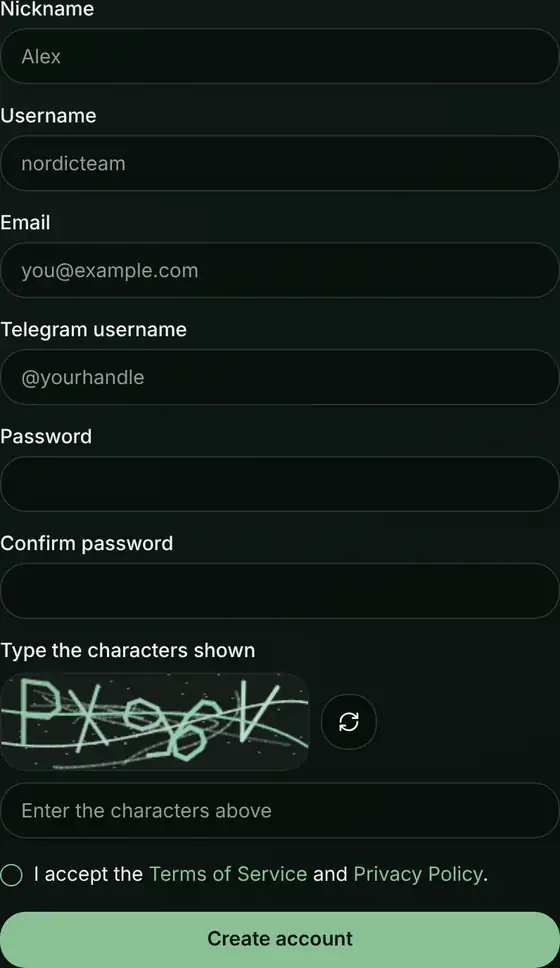
Press Create account at the top of the site. Fill in a nickname, a username (4 to 20 letters, digits,
_or-), your e-mail, your Telegram username and a password of at least 10 characters. Type the code from the picture, accept the terms and press Create account. - 2
Pay the subscription
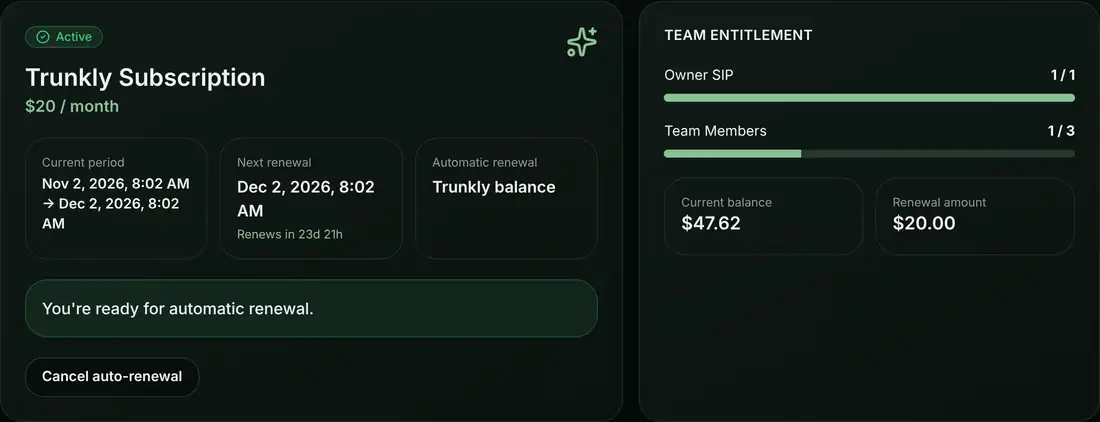
You land on Subscription. The plan costs $20 a month, plus a small fixed processing fee for the crypto payment. Choose the coin you pay with (USDC on Solana, SOL, ETH or LTC, when available) and press Subscribe now. Send the exact amount shown, on the network shown.
- 3
Your account is set up by itself
As soon as the payment is confirmed, your telephony account and your own SIP line are created. The plan includes 1 SIP line for you and up to 3 Team Members, each with their own line. After that the $20 is taken from your main balance every month (from the SIP balance when the main balance is too low). You get a reminder 3, 2 and 1 day before.
- 4
Top up and call
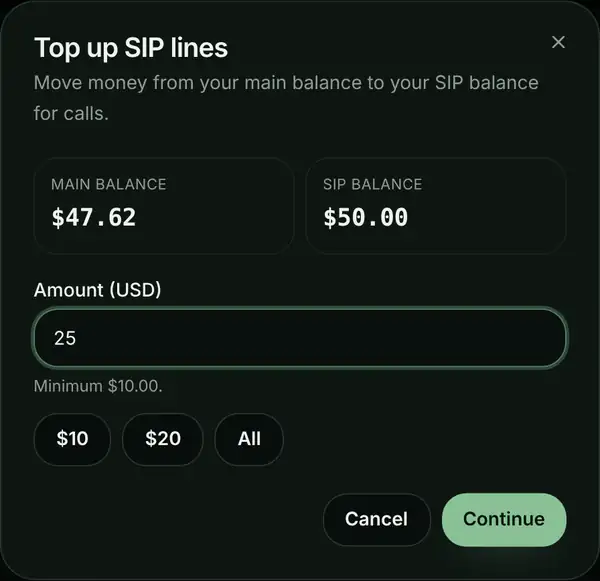
Open Deposit and add balance with crypto. It lands on your main balance. Calls are paid from the SIP balance, so press Top up SIP lines on Overview or SIP lines and move money over (minimum $10). Then connect a softphone, or call straight from the dial pad on your SIP line page.
Tip:Normal balance can only be added when the subscription is active. The first payment is made on the Subscription page.
02
Video guides
The whole portal in about 5 minutes. One video is made for a computer, one for a phone. Press play and turn on the sound for the voice.
03
Connect a softphone
A softphone is a calling app. We recommend PortSIP on a phone, and Zoiper or PortSIP on a computer. Any standard SIP app works.
- 1
Find your login
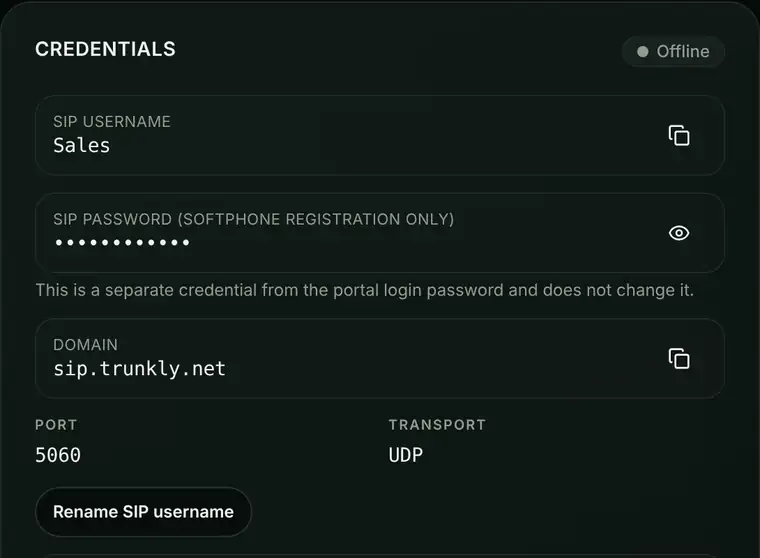
Open SIP Lines and tap your line. The Credentials card shows the SIP username, the SIP password (press the eye to show it) and the Domain.
- 2
Add a SIP account in the app
In PortSIP or Zoiper, add a new SIP account and enter: username = your SIP username, password = your SIP password, domain or server =
sip.trunkly.net, port5060, transportUDP. Nothing else needs to be changed. - 3
Call
When the app is logged in, the status on the Credentials card shows Online. Always dial with the country code, for example
4512345678. - 4
Copy everything at once
Copy full guide at the bottom of the line page copies all the settings, ready to paste or send.
No app? Call from the browser
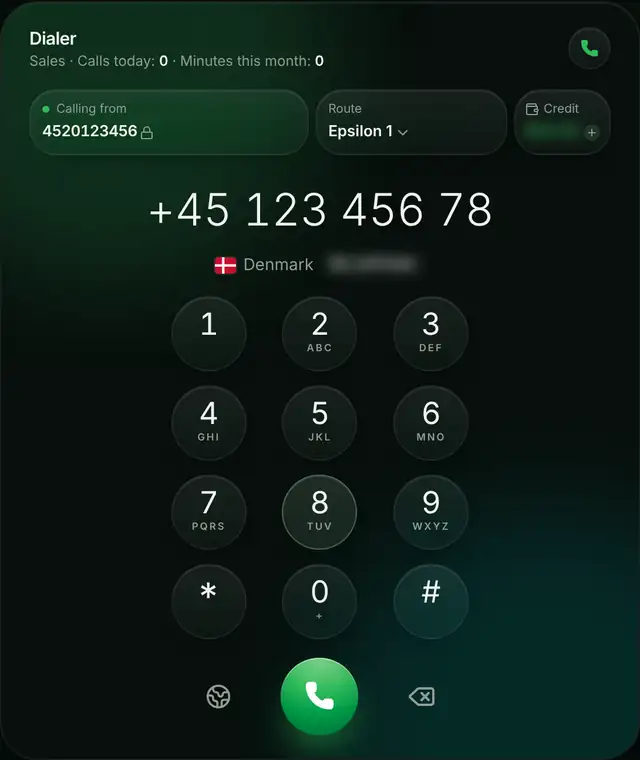
Your SIP line page has a dial pad. It uses the same route, caller ID and price as your softphone, and shows the price per minute before you call. During a call you can mute, open the keypad, use the speaker and press Hold: the other person hears music while the call is on hold.
Good to know:The SIP password is not your portal password. SIP passwords are managed by Trunkly support and cannot be changed in the portal.
04
Change route
A route is the way your calls travel. Every SIP line has its own route for each country, and you can change it any time.
- 1
Open the route picker
On the SIP line page, find Change route and press Switch.
- 2
Pick the country you call
Choose the country under Country you call (you can search). You see every route for that country with its price per minute and its billing.
- 3
Pick a route and switch
Tap a route to compare it with the one you use now (cheaper or more per minute), then press Switch route. The next call uses the new route.
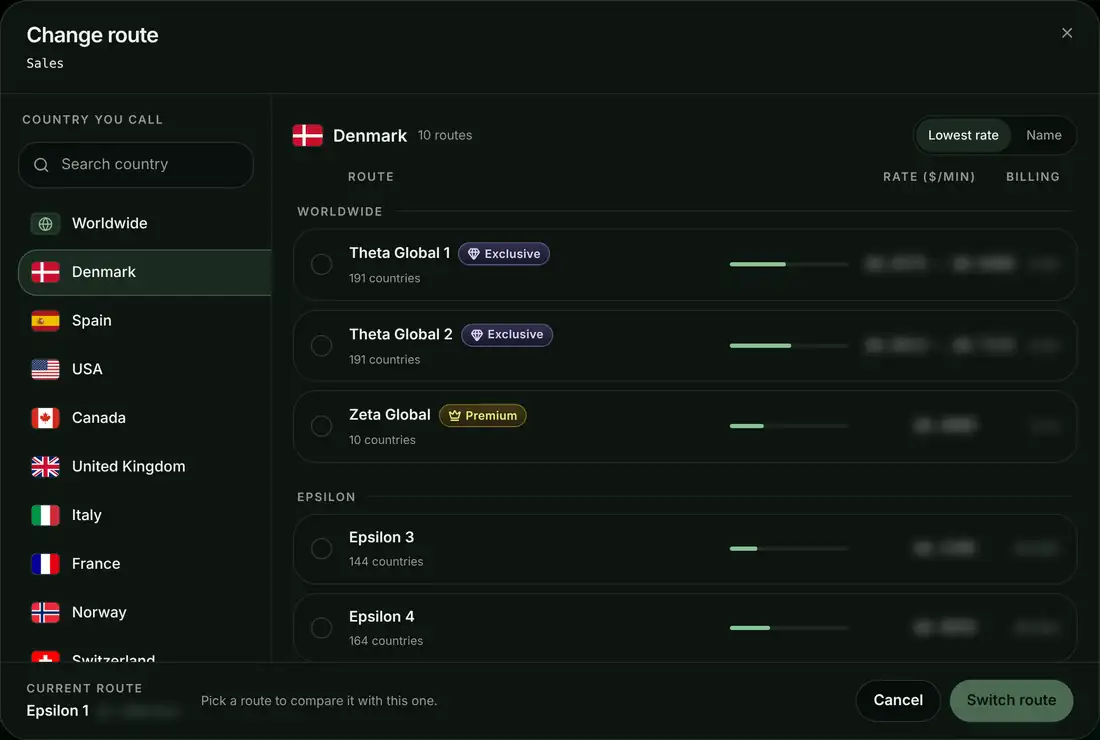
The groups in the list
- Worldwide: routes that cover many countries. Each country on the route's price list has its own price, and switching to one lets the line call every country on that list.
- Epsilon: the Epsilon routes that cover the country you picked.
- Extra Routes: routes for one country. When a line switches to one for another country, that country becomes the only country the line can call, until you switch again. The picker warns you first.
Labels on a route
- Premium: a top-quality route.
- Exclusive: our exclusive worldwide route.
- IVR/P1: works for IVR and press-1 (P1) systems.
- Lowest rate marks the cheapest route and Current the one the line uses now. Sort the list by lowest rate or by name.
05
Caller ID
The caller ID is the number the person you call sees. You set it yourself on each SIP line.
- 1
Type the number
On the SIP line page, under Caller ID, type your own number, a friend's number or any number you want.
- 2
Use the right format
Always with the country code, digits only, no "+" and no spaces (6 to 15 digits). Write
4512345678, not+45 12345678. - 3
Save
Press Save Caller ID and confirm. The next call shows the new number.
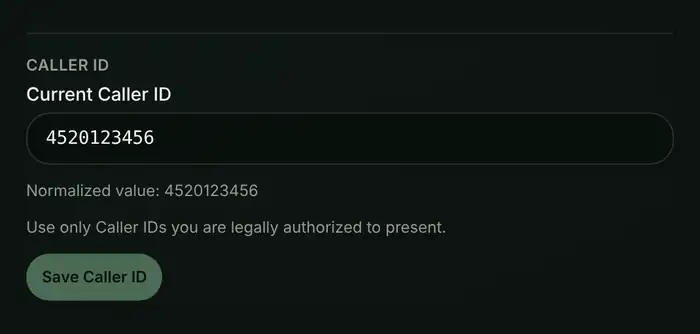
Good to know:With IP login your own server can send the caller ID, and a web dialer can send its own too (see below). As the portal says next to the field: use only caller IDs you are legally allowed to present.
06
IP login (IP2IP)
Have your own server or PBX? With IP login it sends calls straight from its fixed IP address. No password and no registration.
- 1
Open Login method
On the SIP line page, find the Login method card (on a phone: Line info) and choose Server IP.
- 2
Add your server IP
Type the public IPv4 address your server sends calls from and press Turn on IP login. One address works for one line only. Private addresses and the address of our own server are refused.
- 3
Confirm
After you confirm, password login stops for this line, so phones and apps that use the password go offline. A few seconds later the card shows IP login is on.
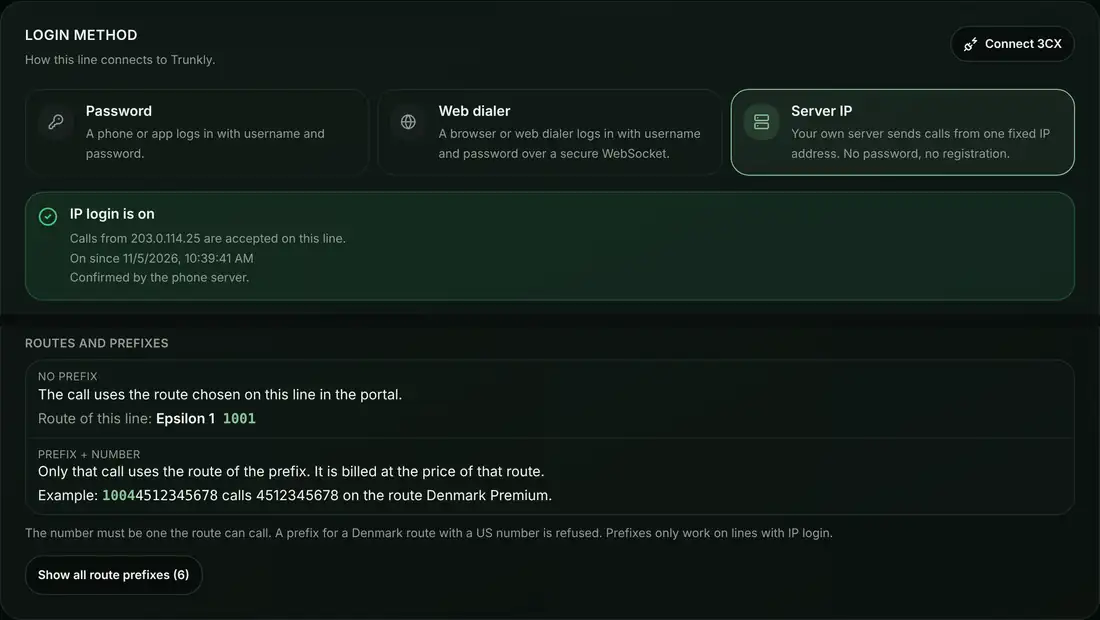
Enter this on your server
- SIP server
- sip.trunkly.net
- Port
- 5060
- Transport
- UDP
- Registration
- Off (do not register)
- Username
- As shown on the card
- Password
- Leave empty
- Send calls from
- Your server IP
- Number format
- Country code + number, for example 4512345678
- Codecs · DTMF
- As shown on the card
Pick a route per call with a prefix
- No prefix: the call uses the route chosen on the line in the portal.
- Prefix + number: only that call uses the route of the prefix, and it is billed at that route's price. With the prefix
1234, the number4512345678is sent as12344512345678(1234 is only an example). - The number must be one the route can call: a prefix for a Denmark route with a US number is refused.
- Every route and its prefix is listed on the card under Show all route prefixes. Prefixes only work on lines with IP login.
Caller ID from your own server
When IP login is turned on, the caller ID comes from your server, so each extension can show its own number. Leave "From user" empty on your trunk. Want one fixed number instead? Choose Fixed number from the portal under Caller ID on the card.
Good to know:Keep registration switched off: calls are only accepted from your address, and our firewall can block an address that keeps trying to log in. Only the Team Owner can change the login method.
07
Web dialer
Use any WebRTC browser dialer, for example one built on JsSIP or SIP.js, with your SIP line.
- 1
Choose Web dialer
On the SIP line page, open Login method and choose Web dialer.
- 2
Enter the settings
Enter these in your dialer: WebSocket server
wss://sip.trunkly.net/ws, SIP domain / realmsip.trunkly.net, the username of the line and its SIP password. Copy all settings copies them in one go. - 3
Choose where the caller ID comes from
Caller ID from the portal shows the number set on the line. Caller ID from my web dialer lets the dialer send a number with each call: add the header
X-Caller-ID(JsSIP and SIP.js: extraHeaders) or set the display name to the number, 6 to 15 digits with the country code.
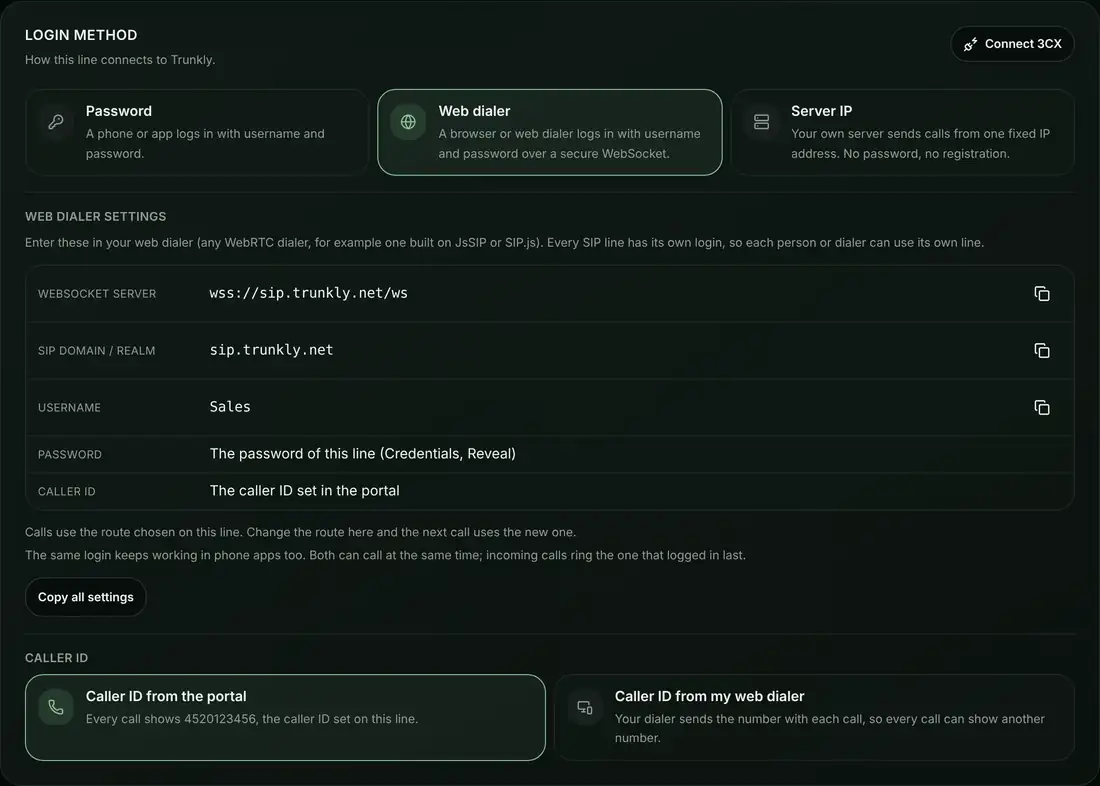
Good to know:Calls use the route chosen on the line. The same login keeps working in phone apps: both can call at the same time, and incoming calls ring the one that logged in last. While a line is set to Web dialer, the dial pad on its page is off; choose Password to use it again.
08
Balances and top up
Your account has two balances. Both are shown at the top of the portal.
Move money to your SIP lines
On Overview or SIP Lines press Top up SIP lines, type an amount (minimum $10) and confirm. No fee is taken. The move is one way: money on the SIP balance cannot be moved back to the main balance.
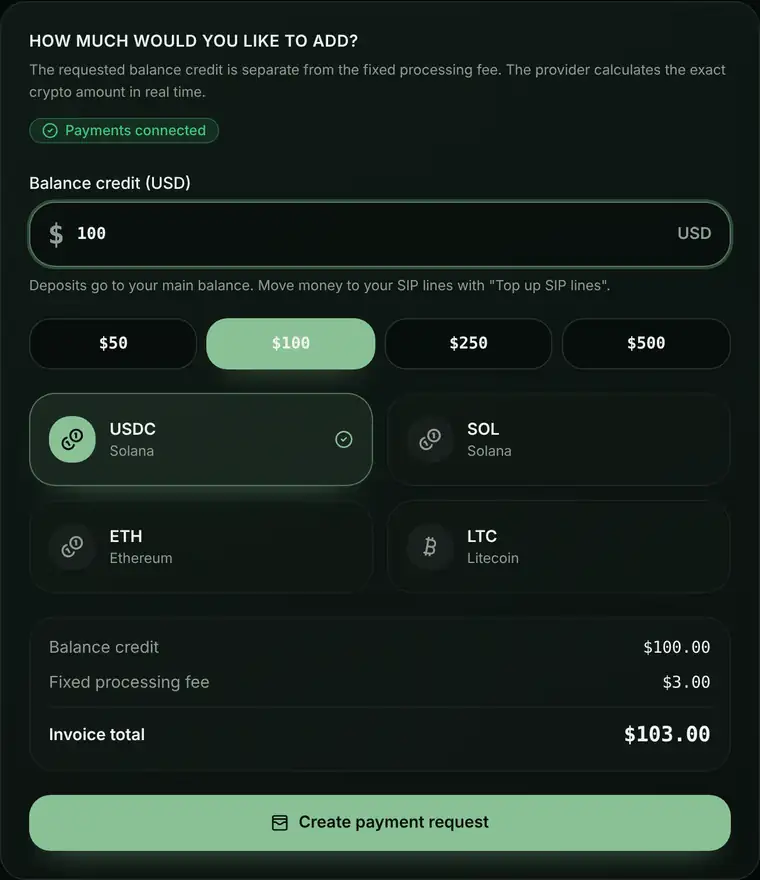
Top up with crypto
- 1Open Deposit, type how much balance you want and choose the coin.
- 2The page shows the minimum and a fixed processing fee that is added to each invoice. Press Create payment request.
- 3Send the exact amount, only the chosen coin, on the network shown. Another coin or network cannot be recovered.
- 4The balance is credited by itself once the payment is confirmed on-chain. A request expires after the time shown; an expired request can be refreshed.
Good to know:Only the Team Owner can make deposits and move money. The balance never expires.
09
Billing blocks explained
Every route shows its billing as two numbers, for example 60/60. The first number is the first block of a call in seconds, the second is each block after that. A block that has started is paid in full.
1/1
Per second: you pay exactly the seconds you talk.
6/6
The first 6 seconds, then every 6 seconds.
30/30
The first 30 seconds, then every 30 seconds.
60/60
Per minute: every started minute is paid in full.
Example: a 45-second call at $0.10 a minute
Good to know:The shorter the blocks, the closer you pay to the real talk time. The route picker shows the billing of every route before you switch.
10
Team Members and account security
Give your people their own login and SIP line. You pay and stay in control.
- 1
Add a member
Open Team Members and press Add Team Member. Enter a nickname, a username, their Telegram and a password for them (at least 10 characters). Their portal login and SIP line are ready at once; send them the details shown.
- 2
New password at login
When you reset a member's portal password, they get a temporary password and are logged out. At the next login the portal asks for a new password before anything else (at least 10 characters, not the same as the old one). Trunkly can ask every account for this after a security upgrade too. SIP lines and their passwords do not change.
- 3
What members see
Members see their own SIP line, their own calls and your SIP balance. No payments, deposits or other members. You can suspend, reset the password or remove a member any time; removing portal access never deletes the SIP line.
Two-step login and sessions
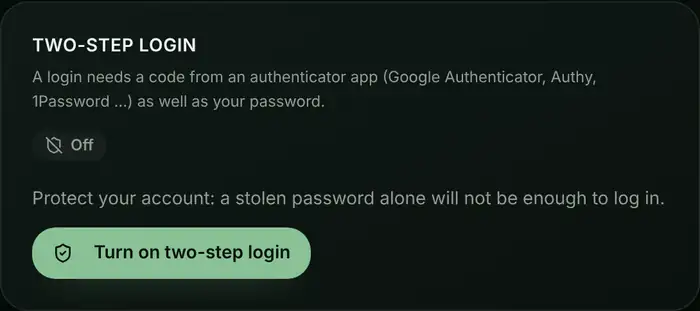
Under Security, turn on Two-step login: scan the code with an authenticator app (Google Authenticator, Authy, 1Password and others) and type the 6 digits it shows. Keep the backup codes somewhere safe. You can also add a passkey and log out other devices.
11
Frequently asked questions
12
Still stuck?
Write to our support on Telegram, we answer there directly. Follow the channel for new routes, price changes and service updates.